
Check whether a server came back
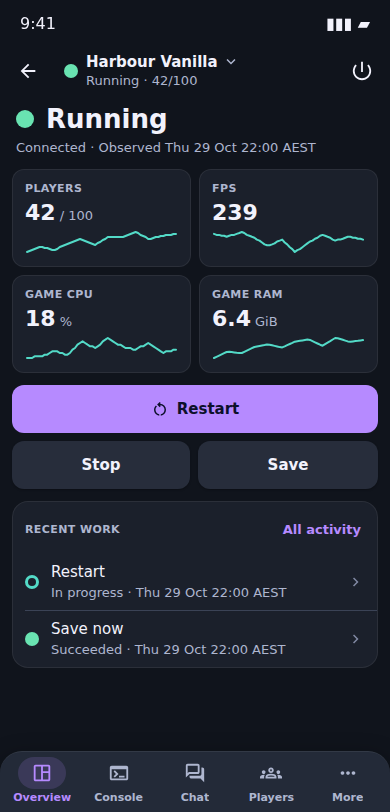
After a restart, open Overview to see if the server is running and players are returning.
What you can do in OverviewCheck a server after a restart, look into a player complaint or pick up an alert away from your desk. Preview the iPhone and Android apps. The web portal also works in your phone’s browser.
Open the affected server, check what happened and act with the access your role gives you.
After a restart, open Overview to see if the server is running and players are returning.
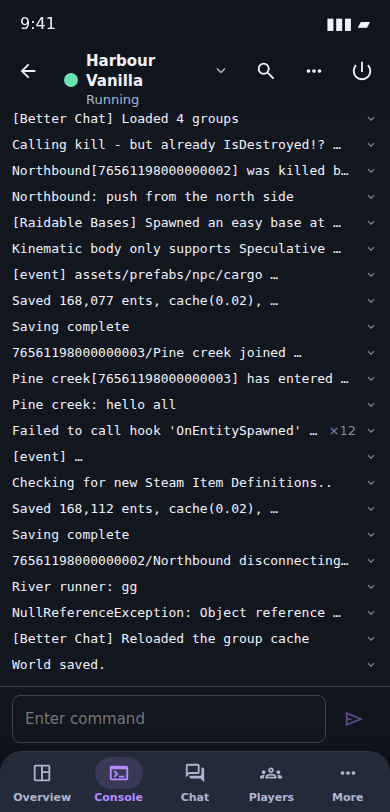
What you can do in OverviewA player reports an error after wipe. Open that server’s Console and search the recent output for the message.
What you can do in ConsoleOpen Players on the affected server. Search by name or Steam ID to make sure you have the right person.
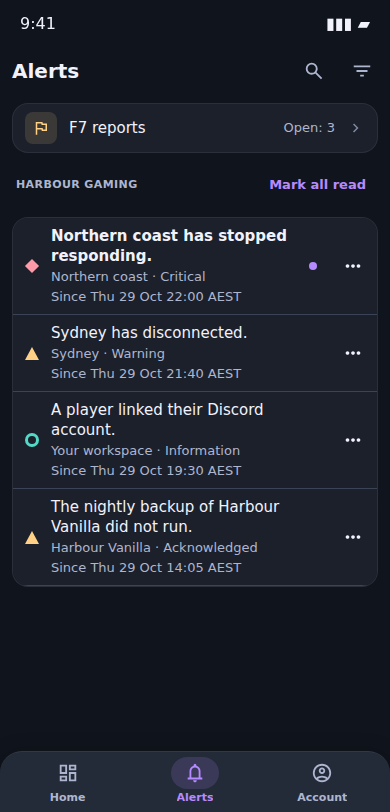
What you can do in PlayersOpen Alerts to see which server stopped responding, which host disconnected, or where a backup did not run.
What you can do in Alerts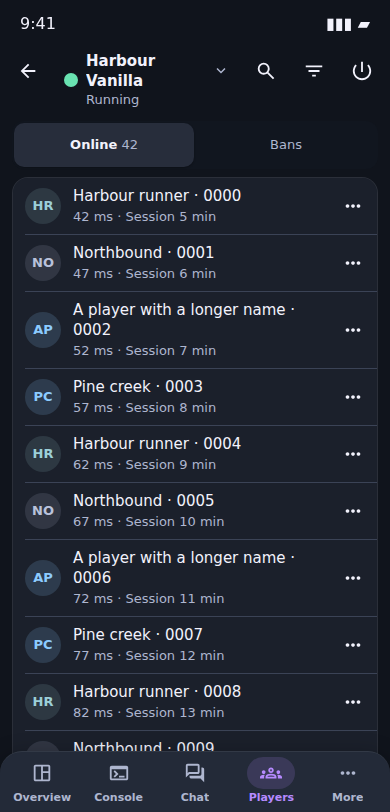
Connect a server once in the portal and it appears when you sign in to the app. Use the portal for tasks such as installing plugins, setting up a wipe or restoring a backup.
Connect your existing server in the web portal. Its world, player saves and plugins stay on your host.
Sign in with the same account you use in the portal. Invite staff to use their own accounts so they can work without sharing a console password.
Choose which servers each staff member can see and what they can do. They can switch between the servers you’ve shared with them.