


Administrator
Give your lead admin access to manage servers and team members across the whole community. Ownership stays with you.
Find out why your server slowed down, give VIPs the same perks on two worlds or schedule a weekend plugin rotation. See how each job works in RustSC.
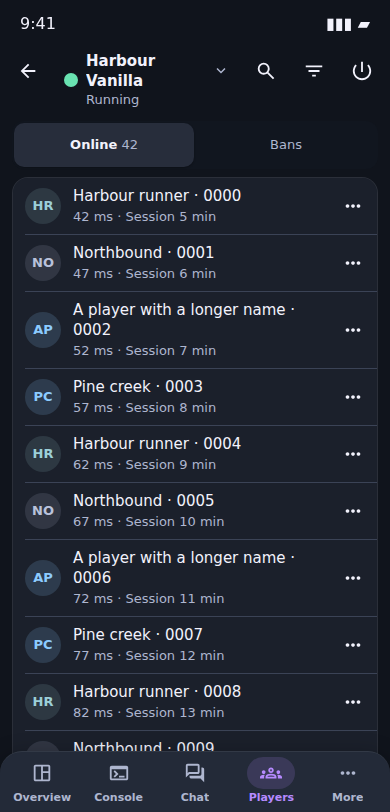
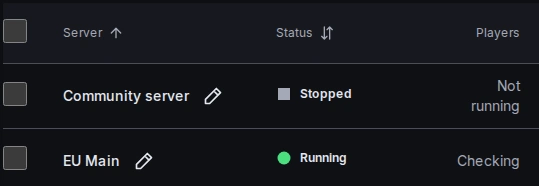
See which servers are running, then open the one your players reported. Each world has its own console, player list and activity.
The Backups page shows the latest copy on your host. Choose Restore to preview which files it will replace.

Open Activity to check whether a backup succeeded or a new map was planned. Select an entry to see its details.

See the next restart, wipe, backup or update for each Rust server. Set a routine that suits your players and check how each run went.
All feature topicsWeekly and Monthly
Run on each server’s clock
Read both runs in History
Set a restart for quiet mornings on the days you choose. Preview the next runs in the server’s time zone and give players a countdown in game chat.
Add the same backup schedule or wipe reminder to several servers at once. Each server runs it by its own clock and gets its own schedule, so you can change one later.
Use Week to see whether a restart and wipe are due together. On a host you control, History explains when a run was skipped because another job was already running.
Once a Windows or Linux host receives a local schedule, it can still run a scheduled restart or backup if it loses contact with RustSC. Check the result when it reconnects.
A clock can tell you when maintenance should end. A server event tells you when the game has actually finished starting. Use either one to trigger the work that follows.
All feature topicsPut the event’s plugin files in place
Use the temporary files
Put the regular files back
Choose the event for a server finishing startup, then choose an available response. Post in Discord so players know when they can reconnect.
Set a start and end for a temporary change. Put the event’s files or plugins in place for the weekend and restore the previous setup when it ends.
Read the latest result or open earlier runs. Pause the rule when you want to handle the job yourself.
If players report a slowdown from last night, open the game’s performance history. Compare server FPS with player count and world entities at the time they noticed it.
All feature topicsPlayer activity is relative to the busiest hour’s average player count.
| Hour | Server FPS | Player activity |
|---|---|---|
| 1 | 79 | 100% |
| 2 | 79 | 55% |
| 3 | 100 | 25% |
| 4 | 111 | 25% |
| 5 | 110 | 25% |
| 6 | 94 | 25% |
| 7 | 120 | 15% |
| 8 | 120 | 20% |
| 9 | 122 | 35% |
| 10 | 95 | 65% |
| 11 | 79 | 65% |
| 12 | 95 | 80% |
Check the game’s processor and memory use. On a host you manage, compare those readings with the whole host to see whether other servers were busy too.
Line up the change with a restart or wipe. Select a point for exact readings, or open the figures as a table. Gaps show when a reading was missing.
View player counts and frame rates across a group of servers, then open the affected world to look closer.
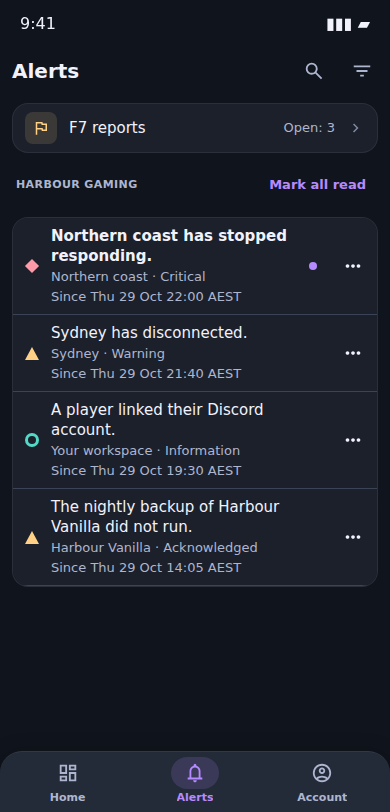
Open Alerts to see what happened, which server or host was affected and what to do next.
All feature topicsChoose which servers to watch for crashes, failed backups and failed wipes. Add low disk warnings for your host and choose reminders for ongoing problems.
Send failed backups to a private staff channel in Discord. Choose your own alerts for a browser with notifications enabled. Use a webhook to send alerts to a tool you run.
Acknowledge a low disk space alert and leave a note saying you’re clearing old backups. Repeat notifications stop while the problem stays visible in Alerts.
When you take a server down for planned work, set a quiet time for selected alerts. Staff can still find those alerts in the portal.
A moderator gets a report after the player has logged out and changed names. Search their earlier name or Steam ID to find the same person and see where else they’ve played.
All feature topicsSee visits across your servers, read private staff notes and add a label the next moderator will recognise.
With the RustSC plugin, staff can inspect what a player is carrying, move a stuck player or give them an item from the browser.
Select the players you want to label, add to a group, kick or ban. Review who the action reached before following up.
A VIP can claim a kit on Weekly but gets denied on Monthly. Look up the player in RustSC to see which permission they have and which Oxide or Carbon group grants it.
All feature topicsCedar has played on both servers. You’ve chosen Weekly and Monthly, reviewed the changes and turned on permission sync.
Test server stays separate.
See what the player received directly, through a group or through that group’s parent. Change the shared group when the fix should apply to everyone in it.
Choose which servers should share permissions and review the additions for each one before turning sync on. Leave your test server out.
In-game owner and moderator status stays with each server. For a one-off setup, save a group list and review it before applying it on another server.
A plugin can be in the right folder and still fail to load. Check what Oxide or Carbon is running before replacing files or asking players to test again.
All feature topics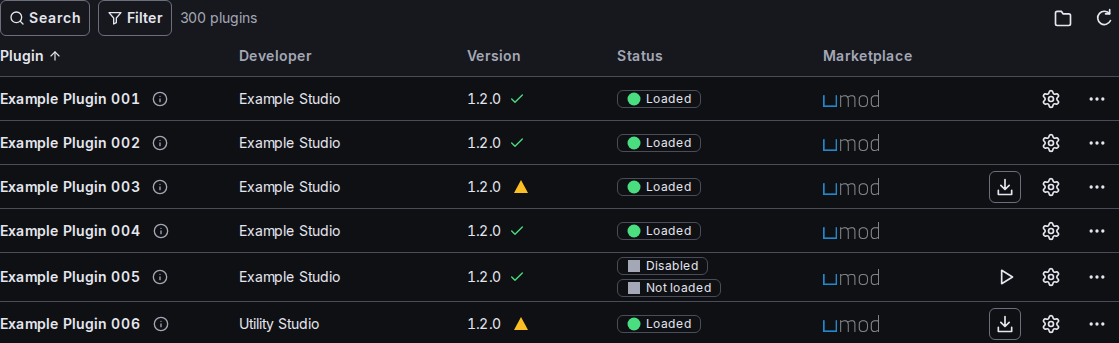
Filter your installed plugins by load status or available updates. Open a plugin to check its settings and the permissions it adds.
Update selected uMod plugins while the game is stopped. Hold a plugin at its current version or mark a file you maintain as your own version.
Check the source and version before updating. If the new release causes trouble, use Roll back where offered to put the previous plugin file back and reload it.
Add the RustSC bot to the Discord server you already use. Set up each Rust server’s channels and choose what linking gives your players access to.
All feature topics
Backup failedWeekly. There was not enough disk space.
Choose the staff channel for failed backups in Alert settings.
Choose a channel for each server’s status board. To share public game chat, turn on recording and set up Chat relay for the channel you want.
With the RustSC plugin on Oxide or Carbon, players get a code in the game and enter it in your Discord link channel. Staff can find a player’s link from RustSC.
Give linked players a Discord role so they can follow wipe announcements. On an Oxide or Carbon server, choose which Rust group and Discord role stay in sync for linked players, and which way changes go.
A map wipe can keep blueprints or clear them. Choose the scope ahead of time, take a backup before the wipe and check the next run in your schedule.
All feature topics
Keep a copy of the world on your host before wipe day. If the wrong map loads or a save is damaged, select the earlier backup and review what it contains.
Preview what restoring this backup will replace.
See how restore worksPreview what restoring this backup will replace.
See how restore worksPreview what restoring this backup will replace.
See how restore worksPick the date and review what the wipe will reset. Choose the next map and whether to reset blueprints or selected plugin data.
Put regular backups and planned wipes on the calendar. See the next run and the result of the previous one before changing the schedule.
See installed plugins, change their settings and manage groups and permissions from the portal.
Install a new server or bring in one you already run. See the installed game and framework versions and choose when to update.
Warn players in chat before a restart and check when the server is back online. Turn on crash recovery to bring it back when it crashes.
RustSC uses role-based access control (RBAC). As the owner, invite each person under their own sign-in and choose their role. You can change or remove their portal access later. In-game staff status is set separately.
All feature topicsGive your lead admin access to manage servers and team members across the whole community. Ownership stays with you.
Assign a moderator to Weekly, Monthly or both. They can look up players, leave private notes and manage bans on the servers you choose.
Let someone run updates, change settings and take backups on their assigned servers. Managing the team and handling bans stay with other roles.
Give a helper a read-only view of the servers and hosts you choose. They can check players, status and backups while you retain control of changes.
With the RustSC plugin on Oxide or Carbon, a moderator can review in-game F7 reports and leave private notes for the next member of staff.
No players match. Try another name.
Connected
Helped welcome a new player.
Connected
Asked about the next wipe.
Previously played
Joined the community recently.
Repeated messages in global chat.
F7 reports use the RustSC plugin on Oxide or Carbon.
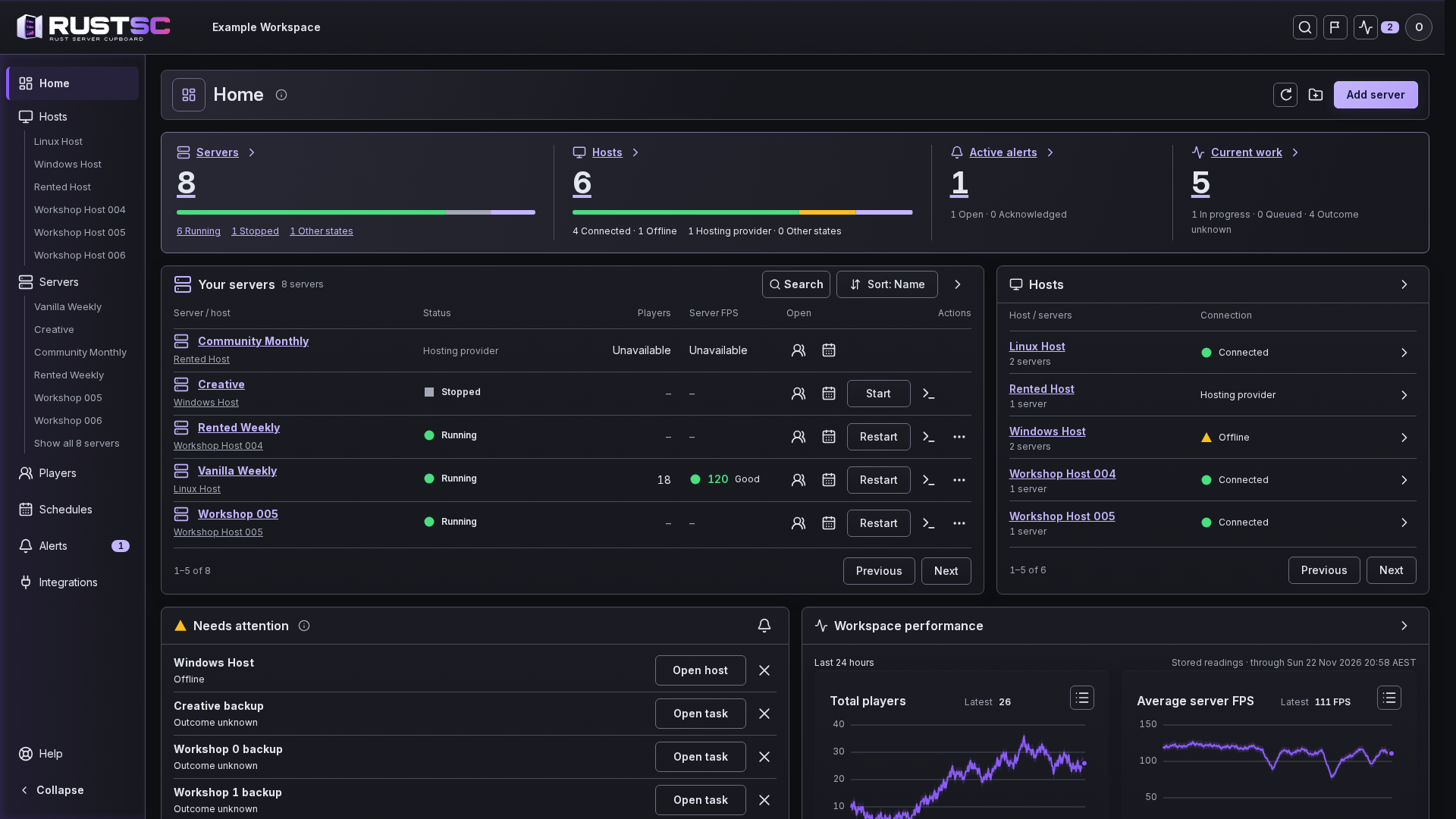
Manage your main world and test server together, even when they run on different hosts. Check each one’s status and review which servers a change will affect.
All feature topics Your servers
 Pine ValleyFrostlineRed Mesa
See which servers are online at a glance.
Use the command line on your host.
Organise servers into groups, even when they run on different hosts.
Check server performance and host resources. Choose which alerts you receive, such as a server crash or a backup failure.
Use the Windows app or the command line on your host. Saved local schedules and core controls can still run when the portal is out of reach.
Preview how to check your server, read the console and look up players on your phone.
A host you control, a rented panel and a file login give you different controls. Check which connection fits the server you already run.
All feature topics