
Your host runs the game. Manage it from anywhere.
Install RustSC on the host that runs your game, then add your existing world in the portal. You choose which jobs to run from your browser.
Connect your server and pick your first job
Start with the host and world you already use. You decide which jobs RustSC takes on.
Connect your host
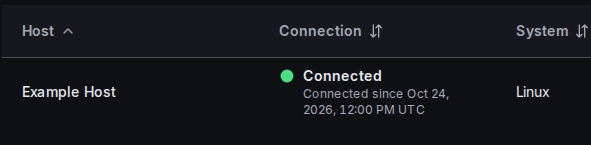
On a host you control, install the Windows or Linux host app. For a rented server, choose your provider to see the connection options.
Add your existing world
On your own host, select the server folder. RustSC reads the settings so you can keep the map and files your players know.
Choose the first job
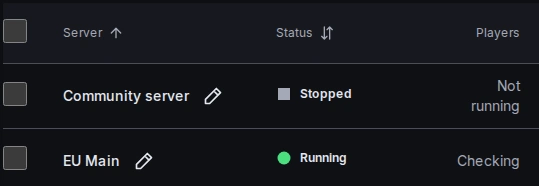
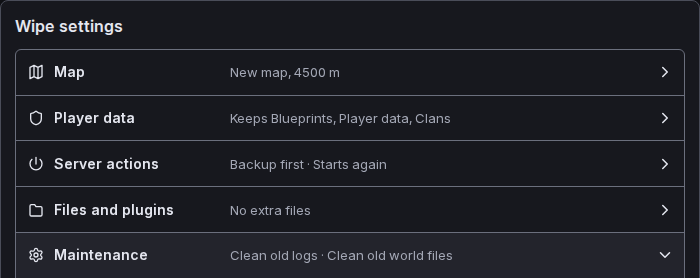
Set up a local backup or plan a wipe. If an existing script handles that job, turn off its schedule when you move it to RustSC.
When players say the server is lagging
A player tells your moderator the game stuttered last night. Even if it’s running smoothly now, you can look back at what the server and its host were doing.
79 to 122 FPS
Hourly averages from one Rust serverStart with the world and the time
Ask which server they were on and roughly when it happened. Open that server in your browser and compare its frame rate with the player count around the time they gave you.
Check the host behind the game
On a host you control, look at processor and memory use over the same period. If several Rust worlds share that host, check whether another world was busy too.
Give the moderator an answer
Your moderator can follow up with players on the server they cover. You and your admins can check the other worlds and the host, each with your own portal sign-in.
When your host loses its connection
What works on your host
Use the command line on your host.
On your host
Local start, stop and backup controls remain available. A wipe schedule already saved on a connected Windows or Linux host can run there even if it loses contact with RustSC.
Back in the browser
Remote controls need the connection. Once the host reconnects, open the server and check what ran before making another change.